How to Choose a Wi-Fi Router in Bangladesh for Your Home
Match a Wi-Fi router to your Bangladesh ISP plan, home layout and devices, then check wired ports, firmware support and warranty.
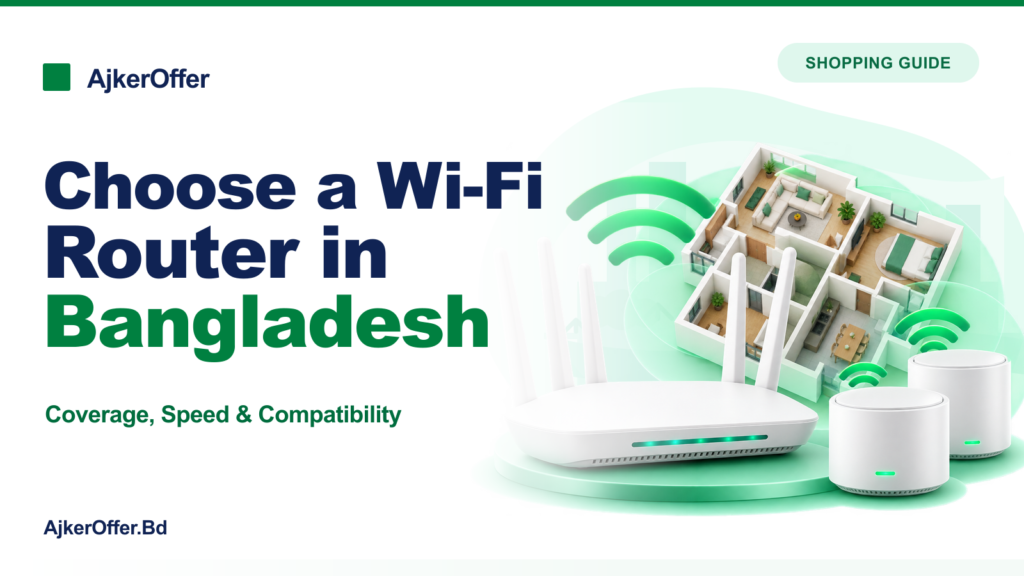
A suitable Wi-Fi router in Bangladesh should match your internet plan, home layout and devices—not just advertise the highest speed number. A router cannot make an undersized broadband plan faster, and a strong speed rating does not promise coverage through every wall. Check the connection type, wired ports, Wi-Fi bands, device support and update policy before buying.
If you are still deciding between fiber, mobile broadband or satellite service, start with our home internet guide. This article focuses on the router after you know which connection will reach your home.
Confirm compatibility with your ISP first
Ask your ISP which router functions the connection requires. Some connections use an Ethernet handoff from an ONT; others may require PPPoE login, VLAN settings or a specific configuration. Do not assume a fiber cable plugs directly into a retail Wi-Fi router or that every router supports the ISP’s setup. Confirm whether the ISP provides a router, whether it can be replaced or bridged, and who will help configure a third-party model.
Read the speed and port specifications realistically
Router listings often show a combined theoretical rate across several bands. That is not the speed one phone will necessarily receive. The actual result depends on the router, client device, internet plan, distance, interference and network congestion. For a wired connection, check whether the WAN and LAN ports support at least the speed your plan provides. A 100 Mbps port can limit a faster service, even if the wireless headline is much larger.
| Feature | What it affects | What to verify |
|---|---|---|
| WAN/LAN port speed | Wired connection ceiling | Port speed and count on the exact hardware revision |
| Wi-Fi generation | Features and supported performance | Router and client device support, not router alone |
| 2.4 GHz band | Reach and older/smart-home device compatibility | Congestion and whether your device requires it |
| 5 GHz band | Often higher throughput at shorter range | Walls, distance and client support |
| Mesh support | Coordinated coverage from multiple nodes | Compatible mesh family and wired backhaul options |
| Firmware support | Security fixes and ongoing maintenance | Manufacturer’s update and end-of-support information |
Choose coverage for the actual layout
Put the router near where you use Wi-Fi, not hidden behind a TV, inside a cabinet or beside large metal objects. Concrete walls, multiple floors and long corridors can weaken a signal. A basic router can suit a compact flat, while a larger or multi-floor home may need an access point or mesh system. Add nodes only where coverage needs them; putting a mesh unit in a dead zone may leave it with a weak link to the main router.
TP-Link’s guidance explains that 2.4 GHz generally reaches farther, while 5 GHz can provide a faster connection over a shorter range. Your devices and local interference affect the result. If a smart device only supports 2.4 GHz, check that the router’s setup process can connect it; a combined network name may handle band selection automatically, but some devices need a separate setup step.
When is Wi-Fi 6 or mesh worth paying for?
Wi-Fi 6 may be useful when several compatible devices share the network or you want features intended to improve efficiency in busy environments. It will not add speed to a slow broadband plan, and older devices may not use its newer features. Check your phones, laptops and TV before paying extra for a router generation none of them support.
Mesh is primarily a coverage approach: several coordinated units can extend a home network. It may help with dead zones, but it adds cost and still depends on placement and the link between units. If you can run Ethernet to an access point, compare that option too.
Prioritise security and support
Choose a model with a clear firmware-update path and the security settings you will use, such as a unique administrator password, current encryption and guest-network controls. Change default credentials during setup and install firmware updates from the manufacturer’s official page or app. A low-cost router with no visible support history may be poor value if it cannot receive fixes.
For Bangladesh, ask the retailer about the exact hardware version, local warranty provider, invoice and replacement process. A product name can cover different hardware revisions, so match the label and software version to the manufacturer’s support page.
Before you buy
- Confirm the router works with your ISP’s connection and setup requirements.
- Match WAN/LAN ports to your subscribed speed and wired devices.
- Check the devices that must connect, including older 2.4 GHz smart devices.
- Plan placement and consider an access point or mesh only for a real coverage gap.
- Check the exact hardware revision, firmware support and local warranty terms.
Frequently asked questions
Will a new router increase my internet plan speed?
It can remove a router bottleneck or improve in-home Wi-Fi, but it cannot increase the speed supplied by your ISP plan. The result also depends on your device and layout.
Is a dual-band router better than a single-band router?
It offers more flexibility for compatible devices, but the best choice depends on your devices, congestion and coverage. Check whether key smart-home products require 2.4 GHz.
Should I buy a mesh router for a small flat?
Not automatically. First try sensible placement and check actual coverage. Mesh makes more sense when a single router cannot cover the home reliably and you can place extra nodes where they still have a strong connection.
Sources and further reading
- TP-Link: differences between 2.4 GHz and 5 GHz Wi-Fi
- TP-Link: improving Wi-Fi signal and range
- TP-Link: router wireless settings and band configuration
Research checked 21 October 2026 (Asia/Dhaka). ISP configuration, firmware support and retailer warranty conditions change by provider and exact hardware revision; confirm them before ordering.